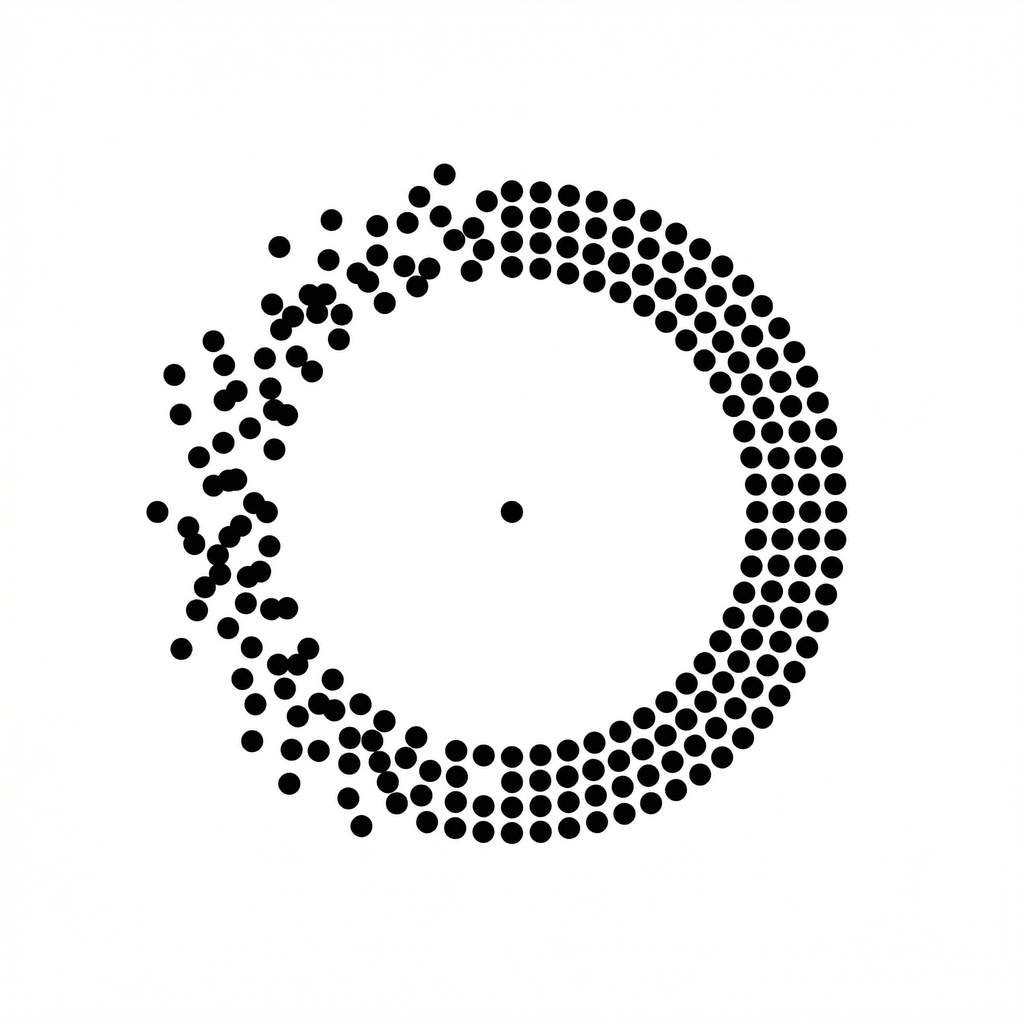
Give the movement a visual cue.
Motion sickness is commonly explained through conflicting sensory information. For example, your body may sense movement while the screen you are looking at appears still. The CDC Yellow Book explains this sensory-conflict theory.
NoMo uses device motion input to animate visual cues. You can choose Dots, Lines or Frame and adjust the presentation. This describes the app’s design; it does not establish a guaranteed health outcome.
Three small steps.
Choose a cue.
Try Dots, Lines or Frame. Give yourself a moment to find a comfortable style.
Make it yours.
Adjust your visual settings and intensity. You can change them whenever you need.
Start your ride.
Keep NoMo open, or use Picture-in-Picture while you switch apps. Take a screen break if you feel unwell.
Comfort is individual.
Try one cue style at a time. Adjust the appearance and intensity to your preference. If moving cues are distracting or uncomfortable, stop the demonstration or put the phone away.
Your screen can wait.
If you feel unwell, take a screen break. Persistent or severe symptoms deserve medical advice. Do not use NoMo while driving.
What the evidence says.
General research about motion sickness and visual references is different from evidence about a particular app. We do not present the sources below as clinical proof that NoMo will work for you.
Sources & product notes
Product details checked against NoMo 1.2.8. Last reviewed October 22, 2026. NoMo is independently developed and is not affiliated with Apple or the cited organizations.